Google Merchant Center: Why Your Products Get Disapproved, and How to Fix Each One
A field guide to Merchant Center disapprovals: what each issue does, where to fix it in your store, and how often it showed up in 123 Shopify stores.

Merchant Center tells you a product is disapproved, names an attribute in square brackets, and links to a help page that says to fix it "in your product data". Your product data does not live in Merchant Center. It lives in your store, and an app or a feed file sends it to Google: on Shopify, that is the Google & YouTube channel, which sends it again on every sync. So the fix that lasts is the one you make in your store.
To see which problems are actually common, I read the public product data of 123 established Shopify stores across six categories, up to 250 products per store: the barcode, the weight, the description and the stock that the Google & YouTube channel sends to Google. That was 22,036 products, and I looked more closely at 2,812 of them and 2,629 of their product pages. This post goes through each issue, what Merchant Center does about it, where to fix it, and how often it showed up. Google's rules are the same on every platform. I use Shopify for the step-by-step fixes, because that is where my data comes from.
- Most issues are something missing in your store's data, not something wrong in Google. Merchant Center builds each listing from what your store sends, then checks it against your product page.
- Price and stock mismatches get a product disapproved. In about 1 in 6 stores, at least one product page's structured data disagreed with the store's own price or stock.
- A wrong barcode is worse than an empty one. 30% of products had no barcode in Shopify, and 14% of the products that had one carried at least one invalid barcode, which Google does not sync at all.
- Never make up a GTIN. Store brands and private label products often have none: send a brand and an MPN. Custom and handmade products have no identifiers at all: mark them as custom products.
- Shipping weight only matters if your shipping rates use it. 85% of stores had shippable variants with no weight, and in 44 stores it was half or more of the products I read.
- Apparel needs an age group, a gender and a color, and clothing and shoes a size, for free listings, and for Shopping ads in the US, the UK and four other countries.
- After a fix, Google rechecks prices within hours to days. A requested review can take up to 7 business days.
Why products get disapproved in Google Merchant Center
Merchant Center sorts problems into two kinds. A disapproval stops the product from showing anywhere on Google. A warning lets the product keep showing, but its performance may be limited. Here are the issues stores commonly run into, what each one does, and where it is fixed:
| Issue in Merchant Center | What Google does | Where to fix it in your store |
|---|---|---|
| Price or availability mismatch | Disapproves the product | The price in your store, or the product page's markup |
| Missing age group, gender, color or size (apparel) | Not shown in free listings, or in Shopping ads in six countries, until they are added | The product's category and attributes |
| Missing shipping weight | Disapproves the product when your shipping rates use weight | The variant's weight |
| Placeholder or promotional main image | Disapproves the product | The product's media |
| Invalid GTIN | Disapproves the product. For Shopify stores, Google says products with an incorrect GTIN are not synced | The variant's barcode |
| Missing GTIN | Limits visibility. Can disapprove the product if it has a GTIN you did not send | The variant's barcode |
| Missing description | Flags the product and limits its performance | The product's description |
Here is how often I found each problem in the stores I checked:
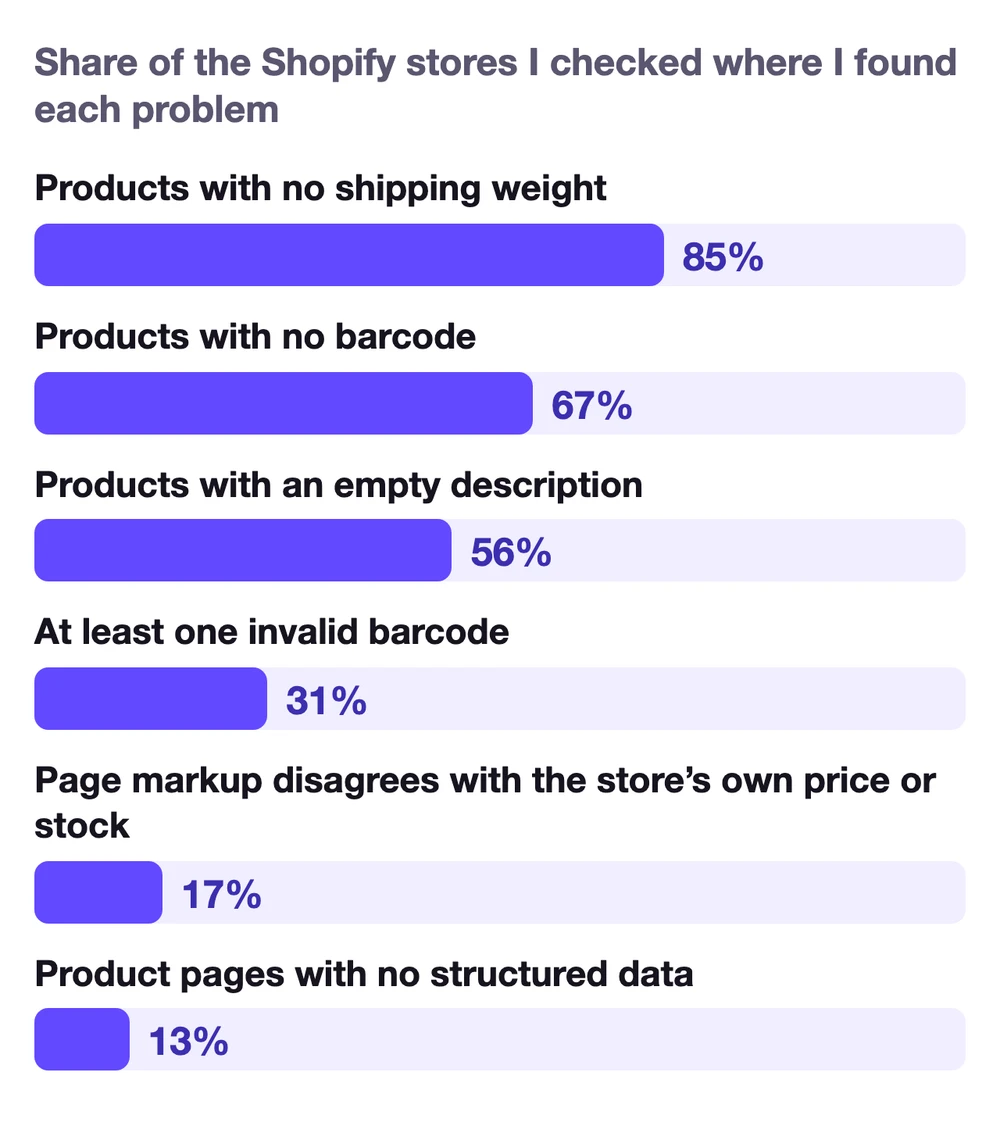
Missing shipping weight was the most common problem: 85% of the stores had shippable variants without it. Two in three stores had products with no barcode, and more than half had at least one product with an empty description.
The stores are established brands such as Allbirds, Rare Beauty, Schoolhouse, Skullcandy, Fly By Jing and Missoma, with years of catalog work behind them.
This post is about Shopping and the free product listings. If your products are missing from Google search itself, the cause is usually somewhere else, and I went through it in why Shopify products are not showing on Google.
Merchant Center also matters beyond Shopping ads now. Google's first reporting on AI Mode visibility lives inside Merchant Center, and in my AI shelf report, products with no structured data on the page still got recommended by ChatGPT and Google AI Mode, and every one of them was listed in Google Shopping. A clean feed is how a product gets onto that shortlist.
On October 15, 2026, Google started rolling out Universal Cart in the US, in Google Search and the Gemini app. Shoppers save products from different stores in one cart, get an alert when a price drops or an item is back in stock, and at many stores check out right there with Google Pay. The checkout runs on the Universal Commerce Protocol (UCP), and the store stays the seller of record. Google builds the cart on the product listings in its Shopping Graph, and on Shopify, product discovery in AI Mode and Gemini is powered by Merchant Center. The feed that gets a product approved is now also what gets it saved, tracked and bought inside Google.
How to read the Needs attention tab
In the current Merchant Center, product problems are listed under Products, in the Needs attention tab. This tab used to be called Diagnostics. Each product has a status:
- Under review: Google is still checking it. This can take 3 to 5 business days for Shopping ads and a few weeks for free listings.
- Approved: it can show.
- Limited: it can show, but a warning is holding it back.
- Not approved: a disapproval stops it from showing anywhere.
Two things save a lot of time. First, sort by the number of affected products. One missing field in a theme or an import often explains dozens of disapprovals at once. Second, tell product issues apart from account issues. A product issue affects only that product. An account issue, such as a checkout problem or a misrepresentation warning, affects every product. Google usually gives you a warning period first and suspends the account if nothing changes, but for serious violations it can suspend straight away. Account issues appear in a banner at the top of the account, so fix those first.
Missing or invalid GTIN: when you need a barcode
A GTIN is the number under the barcode: a UPC in North America, an EAN in Europe, a JAN in Japan, an ISBN for books. Google uses it to match your product to the same product sold by other stores. Google's GTIN requirements are clear on three points:
- If the manufacturer assigned a GTIN, send it. Products with a missing or incorrect GTIN may have limited visibility, and a product that has a GTIN you did not send could be disapproved.
- Each variant has its own GTIN. A blue medium and a blue large are two different numbers.
- Never guess one. Google says to leave it out if you are not sure.
When you do not need one. Store brands, private label products and products only you sell often have no GTIN. For those, send your brand and a manufacturer part number (MPN). Custom and handmade products have no identifiers at all, and Google wants identifier exists set to "no" for them, as for vintage or very old products. In Shopify, tick "This is a custom product" in the Google & YouTube channel for those.
Where to fix it. Put each variant's GTIN in your platform's barcode or GTIN field, or in your feed. On Shopify, open the product, choose the variant, and fill in Barcode in the Inventory section. For products without a GTIN, add the MPN in the Google & YouTube channel. Shopify sends your Vendor field as the brand, so make sure it holds the brand and not a supplier's name.
What I found. 30% of the products I sampled had no barcode on any variant. It depends a lot on the category: 7% in apparel, but 48% in food and drink and 45% in electronics. Some of those products truly have no GTIN. But many of these brands also sell through retailers, where every product carries a barcode. Big brands often send GTINs to Google through a separate feed tool, so an empty field does not always mean a broken listing. It does show how easily the barcode ends up in one system and not in Shopify.
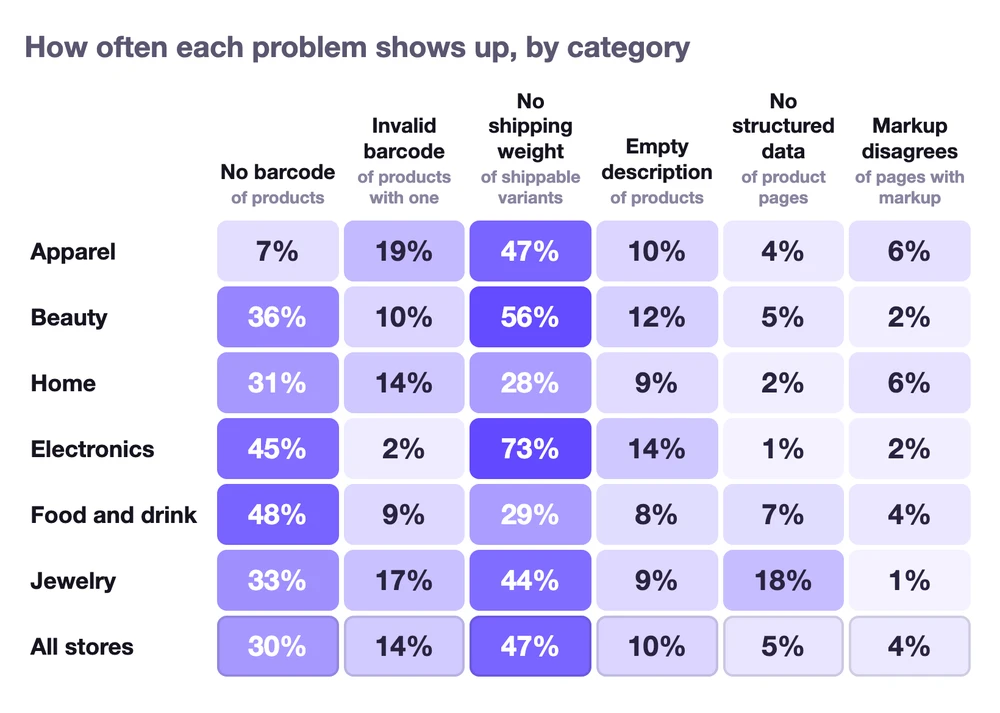
By category, missing shipping weight was the most common problem in four of the six, reaching 73% of shippable variants in electronics. In food and drink and in home, products with no barcode led instead, at 48% and 31%.
The barcodes that were filled in had their own problems. Of the products that had a barcode, 14% carried at least one invalid one, and in 36 of the 115 stores I could check, at least one barcode was invalid. These are the reasons, with the number of stores where I saw each one:
| What was wrong | Stores | What it looked like |
|---|---|---|
| The last digit does not match | 15 | A code of the right length whose check digit is wrong: often an internal 8-digit number, sometimes a typo |
| Letters or symbols in the field | 14 | A SKU in the barcode field, "_used" added to the end, two barcodes joined with "&" |
| Wrong number of digits | 10 | Mostly codes of 9 or 10 digits |
| Leading zero missing | 1 | An 11-digit code that becomes a valid UPC once its missing leading zero is added back |
| A placeholder | 1 | "0" in place of the barcode |
| Spreadsheet notation | 1 | 1.97102E+11, a 12-digit UPC that a spreadsheet turned into a number |
| Reserved for in-store use | 1 | Codes starting with 2, which retailers use for their own labels |
An invalid barcode is worse than an empty one. Google's guide for the Google & YouTube app says products with an incorrect GTIN are not synced to Merchant Center and are disapproved. The last digit of every GTIN is a check digit, worked out from the others, so a typo almost always shows. You can test any code with the GS1 check digit calculator. Google also rejects codes from two reserved ranges: those starting with 02, 04 or 2, which are for in-store use, and those starting with 05, 98 or 99, which are for coupons. The spreadsheet cases are the easiest to avoid. If you edit barcodes in a CSV, import it with the barcode column set to Text (in Excel, Data > From Text/CSV), or use Google Sheets, so the leading zeros and the long numbers are not changed when you save.
Missing shipping weight
Google needs a shipping weight only when your shipping rates depend on it: weight tables, or rates calculated by a carrier. With a flat rate or free shipping, Google can work out the cost without it. When the rates do use weight and a product has none, Google cannot price the shipping, and the product is disapproved. On Shopify, the Google & YouTube channel supports carrier-calculated rates only in Australia, Germany and the United States. Everywhere else it uses flat rates.
Where to fix it. Enter the weight on each variant in your store, using the weight your carrier charges for, which is usually the packed weight. On Shopify, it is in the variant's Shipping section, and only the rates in your General shipping profile sync to Google, so check that profile as well if the error stays.
What I found. In 104 of the 123 stores, at least some shippable variants had no weight, and in 44 stores it was half or more of the products I read. In the typical store, a quarter of shippable variants had none. Across all the variants it was 47%, but five stores with very many variants account for half of that. My larger study of 1,000 Shopify stores found the same pattern: 83% of stores had shippable variants with no weight, 38% of all such variants, with a minority of stores pulling the total up. If you ship at a flat rate or for free, a missing weight costs nothing today. The risk is in changing your shipping later. The day you switch to weight-based or carrier-calculated rates, every product without a weight loses its shipping cost on Google at once.
Missing category, age group, gender, color or size
Google decides which attributes a product needs from its category. If you do not set one, Google assigns a category itself, and if it picks the wrong one it may ask for attributes your product does not have. Set the category yourself.
Free listings need an age group, a gender and a color for every apparel and accessories product, and a size for clothing and shoes. Shopping ads need the same attributes when you target Brazil, France, Germany, Japan, the United Kingdom or the United States. Use Google's own values: "male", "female" or "unisex" for gender, and "adult" for anything not made only for children.
Where to fix it. Set the category and the attributes on the product in your store, or map them in the app or feed that sends your products to Google. On Shopify, each attribute comes from a different place:

- Category: the Category field on the product page, which uses Shopify's standard product taxonomy. Google receives it as its own product category.
- Color and size: variant options named Color and Size reach Google automatically. Name them in English, because Shopify only syncs English options to Google.
- Age group, gender and condition: the Google & YouTube channel's product fields.
Our team tested this on a BrandyBee demo store connected to Merchant Center. The category, the Color and Size options, and the Google & YouTube fields all reached Google. Some of Shopify's own category fields, like color and fabric, did not show up in Merchant Center. Those fields can power your store's own filters, but they do not complete your feed.
Price or availability mismatch
This is the issue that catches established stores out, because nothing is missing. The data exists, but two places disagree. Google crawls your product page and compares its price and stock with your feed. If they do not match, the product is disapproved. Google reads the price from the page's HTML and its structured data (the hidden product markup that search engines and AI shopping agents read), and it warns that a price filled in by JavaScript after the page loads will also trigger the error.
This matters more now that Universal Cart alerts shoppers when a product they saved drops in price or comes back in stock. The price and stock Google holds for your product are no longer only checked against your page. They are shown to people deciding whether to buy.
I compared each product page's structured data with the store's own product data, fetched seconds apart, and fetched every disagreement a second time to rule out timing. In 17 of the 99 stores where I could compare them, at least one page disagreed with the store. Prices disagreed on 2.1% of the pages I could check, and stock on 2.3%. The causes repeated:
- A discount in the markup only. A subscription price, a bundle discount or an app's sale price was written into the structured data, while the product in Shopify kept its full price. The feed sends the full price, the page says the lower one, and Google sees two prices.
- Two blocks that disagree. When a theme and an app both add product markup, the page ends up with two sets of it. 24% of the pages with product markup carried more than one. On one store, the second block gave the full size the travel-size price.
- Rounded prices. One store's markup rounded $202.30 to 202. Google asks for the price in the HTML to match the feed exactly.
- Every variant marked in stock. Some pages mark every variant in stock, including sizes that cannot be bought.
- Typos in the markup. One store wrote its price as "69,99", with a decimal comma, where schema.org asks for a decimal point, so a parser can read it as 6,999. Another wrote its stock status with a space in the middle ("schema.org/ InStock"), which is not a valid schema.org value.
Where to fix it. If the price in your store is wrong, fix it there and the feed follows. If the page is wrong, the fix is in the theme or the app that writes the markup. Check the product page in Google's Rich Results Test, or in the free product data checker, which shows the price and stock your page's markup gives to machines. I went through the fields that markup needs in product schema markup for ecommerce. If you see two products listed, make sure both carry the same price and stock, or turn off the markup in whichever app or theme section is wrong. A review app's block often carries your star ratings, so do not remove it blindly. If you write the markup yourself, a product schema generator gets the format right: a decimal point in the price and a valid stock value. Sales need care too. A discount that only changes the price shown on the page leaves the feed on the old price, so put sale prices on the product in your store itself, where the page and the feed both read them.
Google also runs automatic item updates, which are on by default. When the page and the feed disagree on price or stock, Google can update the feed from your structured data instead of disapproving the product. That only helps when your structured data is the correct one.
Image and description issues in Merchant Center
Image size was not the problem in these stores. Only 0.3% of main images were under 500 pixels, which is Google's minimum for all products from January 31, 2027, and fewer than 1 in 100 products had no image at all. In the 1,000-store study it was 2.7%, so worth a check before that date. The rules that do catch stores out are about what is in the main image: no promotional text, badges or watermarks, and no placeholders such as a "coming soon" graphic or your logo. In that same study, about 1 in 9 main images showed something these rules do not allow. If your main image carries text or a badge, you can make a clean studio version from the same photo. I covered the rest in the images a product page needs.
Descriptions were a bigger gap. Leaving out free items, 10% of products had an empty Description field, and 56% of stores had at least one such product. In 6 stores, it was half or more of the products I read. The larger study of 1,000 stores came out close: 7% of products had no description, and 45% of stores had at least one. Some themes build the product page from sections and metafields, so a page can look complete while the Description field, the one your feed sends, stays empty. Check the field itself, not the page. Title length, on the other hand, was fine: only one product in 22,036 had a title over Google's 150-character limit. What the titles say is another matter: in the larger study, about 1 in 7 did not say what the product was. If you have products with nothing written, write descriptions for the products that have none in the product's own Description field, where the feed can read them.
After you fix it: how long until products are approved
Most fixes reach Google with your feed's next update, and Google then checks the product again:
- Price mismatches: Google recrawls disapproved products over the next few hours or days. You can request a website check from the issue in Merchant Center, which takes up to 12 hours.
- Other product issues: data issues, like a missing attribute, are checked again when the fixed data arrives. Where Merchant Center offers it, you can also pick "I fixed the issue", then request a review. Reviews can take up to 7 business days.
- Check the fix before you ask. If an issue is still there after the second review, Google may start a one-week cool-down, and it can get longer each time.
Changes to the Needs attention page itself can take 24 to 72 hours to show. If a product still looks disapproved the day after you fixed it, give it time before you change anything else. Once products are approved again, see the traffic and sales they bring back from Search Console and Analytics.
How BrandyBee finds and fixes Merchant Center issues
Fixing all of this by hand means a lot of moving between Merchant Center, Shopify and the product page. BrandyBee puts it in one list per product. It connects to Merchant Center with your Google sign-in, reads the issues Google reports, and checks the product page itself: its structured data, its barcode and its stock.


The fixes are written to your Shopify product, never to Google, so they survive the next sync and every other channel that reads the product gets them too. You confirm the barcode, the weight, the category or the Shopping attributes, and BrandyBee saves them to the right product or variant. It checks a barcode's check digit and never makes one up. When Google reports that the page and the feed disagree, the warning sits on the product next to BrandyBee's own check of the page, so you can see where to correct it.
You can see how it works on the Merchant Center fix list.
What to fix first
Start with what stops products from showing: price and stock that disagree with the page, apparel without its attributes, invalid barcodes, and missing weights if your rates use weight. Then fill in the barcodes and descriptions that only hold products back. Almost all of it is fixed in the same place: the product in your store, which every sync carries to Google.
Merchant Center product data statistics
The main numbers from this study in one place:
- In 104 of 123 established Shopify stores (85%), at least some shippable variants had no shipping weight, and in 44 stores it was half or more of the products I read.
- 30% of the products I sampled had no barcode on any variant, from 7% in apparel to 48% in food and drink.
- Of the products that had a barcode, 14% carried at least one invalid one, and 36 of the 115 stores I could check had at least one invalid barcode.
- In 17 of the 99 stores where I could compare them, at least one product page's structured data disagreed with the store's own price or stock.
- Prices on the page disagreed with the store on 2.1% of the pages I could check, and stock on 2.3%.
- Leaving out free items, 10% of products had an empty description, and 56% of stores had at least one such product.
- Only 0.3% of main images were under 500 pixels, and fewer than 1 in 100 products had no image at all.
- In a larger study of 196,484 products in 1,000 Shopify stores popular with US shoppers, 83% of stores had shippable variants with no weight (38% of all shippable variants), 7% of products had no description, and 2.7% of main images were under 500 pixels.
Merchant Center disapproved products FAQ
Why are my products disapproved in Google Merchant Center?
Usually because the page and the feed disagree on price or stock, an apparel product is missing its age group, gender, color or size, a barcode is invalid, or a product has no shipping weight while your shipping rates use weight. Promotional or placeholder main images are another common cause. The Needs attention tab names the attribute for each product.
What is the difference between disapproved and limited in Merchant Center?
A disapproved product does not show anywhere on Google until the issue is fixed. A limited product still shows, but a warning, like a missing GTIN, holds back how often. Fix the disapprovals first.
Do I need a GTIN for every product?
No. You need one when the manufacturer assigned one, which covers most branded products sold in shops. Store brands, private label products and products only you sell often have none: send a brand and an MPN for those. Custom and handmade products have no identifiers at all: in Shopify, mark them as custom products in the Google & YouTube channel. Never make a GTIN up.
Where do I fix Merchant Center errors on Shopify?
In your Shopify admin, not in Merchant Center. The barcode and weight are on each variant, the brand is the Vendor field, the category is on the product, and age group, gender and condition are in the Google & YouTube channel. Shopify keeps sending its own data on every sync, so that is where a fix lasts.
How long does it take for a disapproved product to be approved again?
Price mismatches are rechecked within a few hours or days, and a requested website check takes up to 12 hours. A requested review can take up to 7 business days. Changes can take 24 to 72 hours to show in the Needs attention tab.
What does price mismatch mean in Merchant Center?
It means the price Google found on your product page is not the price in your feed. Common causes are a discount written into the page's structured data only, a second block of markup from an app, a rounded price, or a price added by JavaScript after the page loads. Fix whichever side is wrong, and Google rechecks the page.
Can shoppers buy my products directly on Google?
In the US, yes, at stores that support it. Universal Cart and checkout in AI Mode and the Gemini app run on the Universal Commerce Protocol (UCP). If your platform does not handle it for you, you set it up in Merchant Center under Settings > UCP integration, which is rolling out gradually in the US, and Google has to approve the integration before it goes live. On Shopify, direct checkout in AI Mode and Gemini is on by default for eligible stores, which must be based in and sell to the US and have a valid Merchant Center account, and you can turn it off under Sales channels > Agentic. Subscriptions, bundles, customizable products and B2B-only products are not supported. Either way, the store stays the seller of record, and the product data comes from your Merchant Center feed.